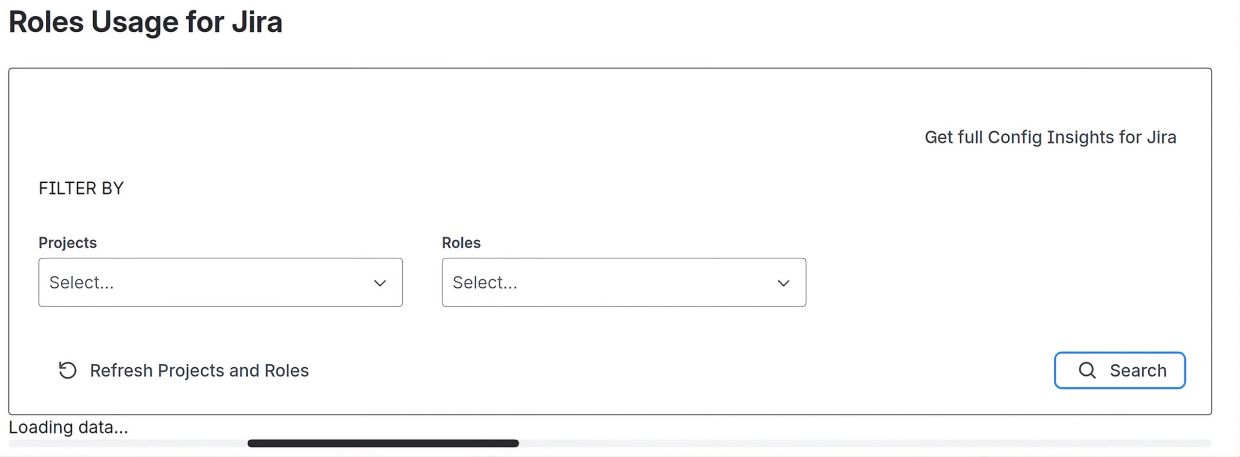
Use the Filter area to refine your search. You can:
- Search for roles across all projects
- Select multiple projects and roles to narrow down your search results
When you click the Search button, a confirmation popup will appear. If you haven't specified values for Project and Roles in the filter, the search results will include all roles across all projects. Please note that this may take longer to load.
However, once the data is loaded, you'll enjoy fast and seamless navigation. You can sort results and switch between pages almost instantaneously.
If you suspect updates to projects or roles, cancel your search, refresh the data by clicking 'Refresh Projects and Roles', and then click Search again.
Once the data is loaded, the app presents the project-role-user relationships from two complementary viewpoints:
Project-Role-User Relationship: This perspective shows how projects, roles, and users are interconnected.
User-Role-Project Relationship: This alternative viewpoint highlights the relationships from the user's perspective, illustrating their roles and associated projects.
Refresh Data reloads information from Jira, ensuring that newly created or recently updated artifacts are included in subsequent searches and reports.
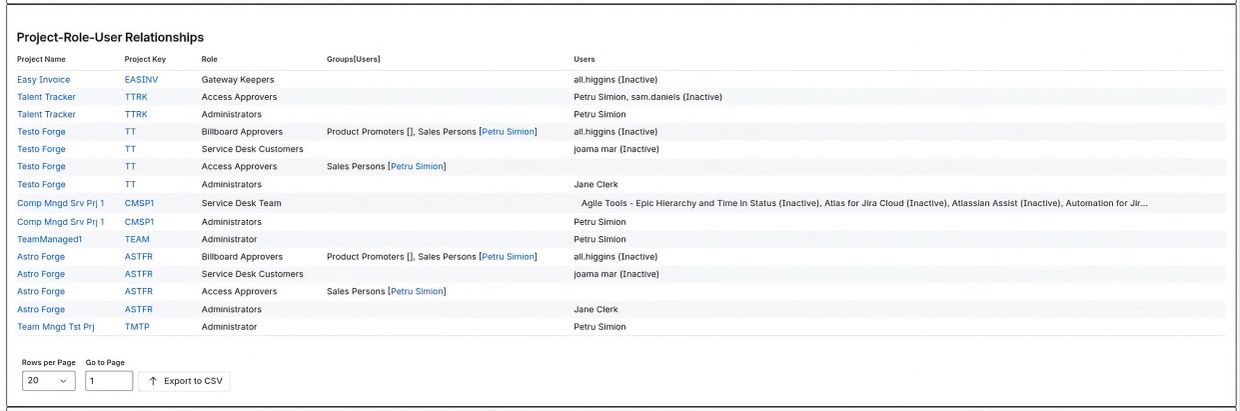
Project-Role-User Relationship Perspective
This view illustrates the hierarchical relationships between projects, roles, and users. Each row represents a connection between a project and a role.
Columns:
Project Name: The name of the project, linking to its details page.
Project Key Name: The key of the project containing the role, also linking to the project page.
Role Name: The name of the role.
Group[Users]: A comma-separated list of groups and their members ([users]) assigned to the role. Usernames link to their respective user pages.
Users: A comma-separated list of users directly assigned to the role. Each user is a link to their user page.
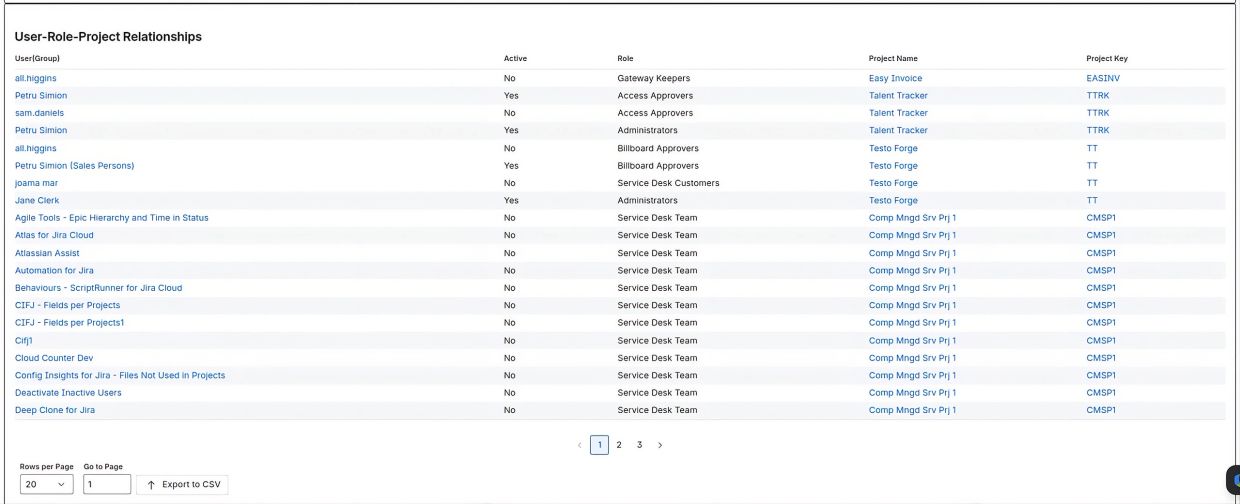
User-Role-Projects Relationship Perspective
This view illustrates the hierarchical relationships between user, role, projects. Each row represents a connection between a user and a role.
Columns:
User(Group): User and group if user relationship is between a group and role.
Active: Y/N if user is active/inactive.
Role Name: The name of the role.
Project Name: The name of the project, linking to its details page.
Project Key Name: The key of the project containing the role, also linking to the project page.